
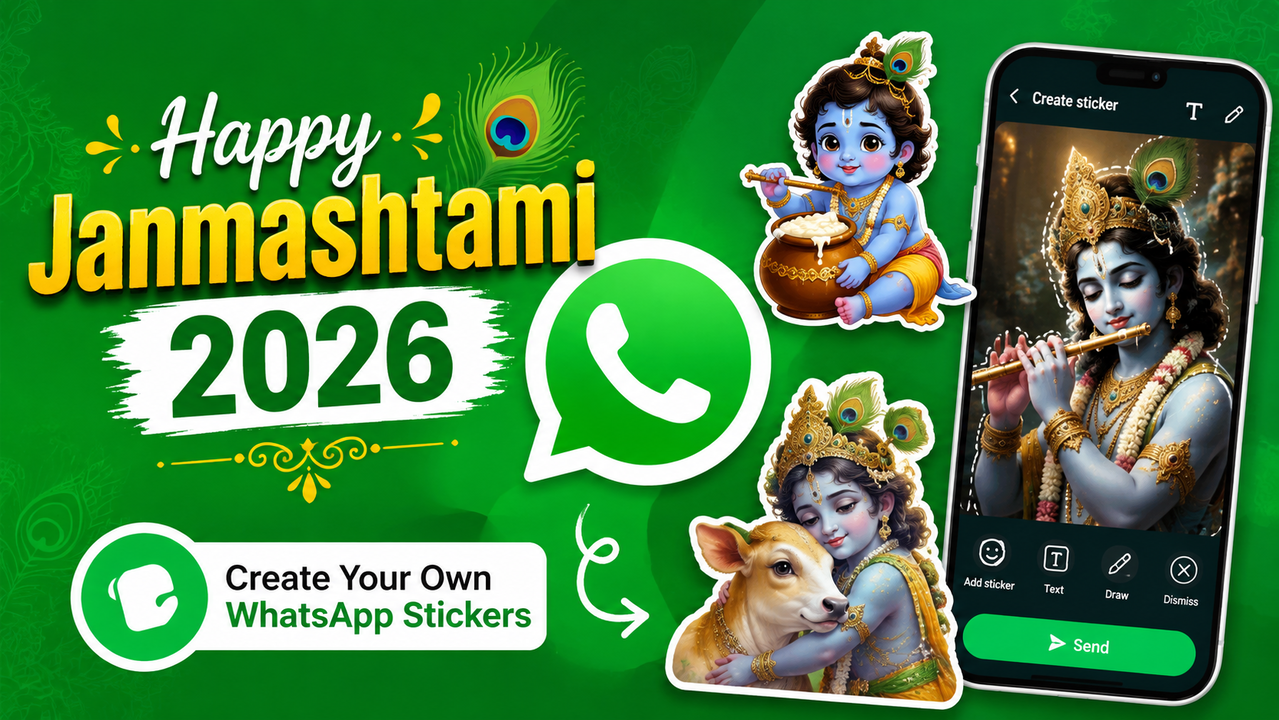
The festival of Janmashtami will be celebrated on September 4, 2026. As we celebrate the birth of Lord Krishna, WhatsApp users can wish each other by creating customised stickers using their own photos to make their wishes more personalised. Instead of depending on the same ready-to-use stickers packs, here is how you can turn your favourite Krishna picture into a sticker directly without going to any other AI apps like Gemini and ChatGPT, whether a little Kanha dancing over Kalia snake or the king of Dwarika imparting wisdom, here is what more you can try.
The feature to create stickers on WhatsApp can help you to choose a picture from your device, personalised wishes, custom emojis and then you can save it as a sticker to share with your loved ones. This process is available for iOS and Android devices, here the steps for both.
How To Create Personalised WhatsApp Stickers On Android
Open the WhatsApp app on your Android device and pick a specific chat.
Tap the stickers icon, it is represented by a square with a folded corner.
Now, pick the stickers again.
Click on Create > Recents > See more > Photos.
Pick a picture you want to transform into a sticker from the gallery or click a new picture.
Click on Add sticker/emoji to add a sticker or emoji.
Tap Text to type the message you want to include.
Pick Draw on sticker to add drawings or other creative elements.
Tap Dismiss if you want to start over.
Once you are happy with the sticker, tap Send to share it.
How To Make WhatsApp Stickers On iOS
This process is slightly different from the iOS devices.
Go to WhatsApp and click on the Stickers icon.
Tap Create Sticker, shown by a landscape photograph with a plus sign.
Click on Use a photo.
Choose the photo you want to turn into a sticker from your gallery.
Click on one of the preset options shown on the preview screen.
Tap on Add sticker emoji to add an emoji or sticker.
Click on Add text to sticker to add a customised Janmashtami message.
Click on the Draw on sticker to draw on the image.
Use Undo if you want to reverse an edit.
Tap Dismiss to cancel or start again.
Tap Send when the sticker is ready.
